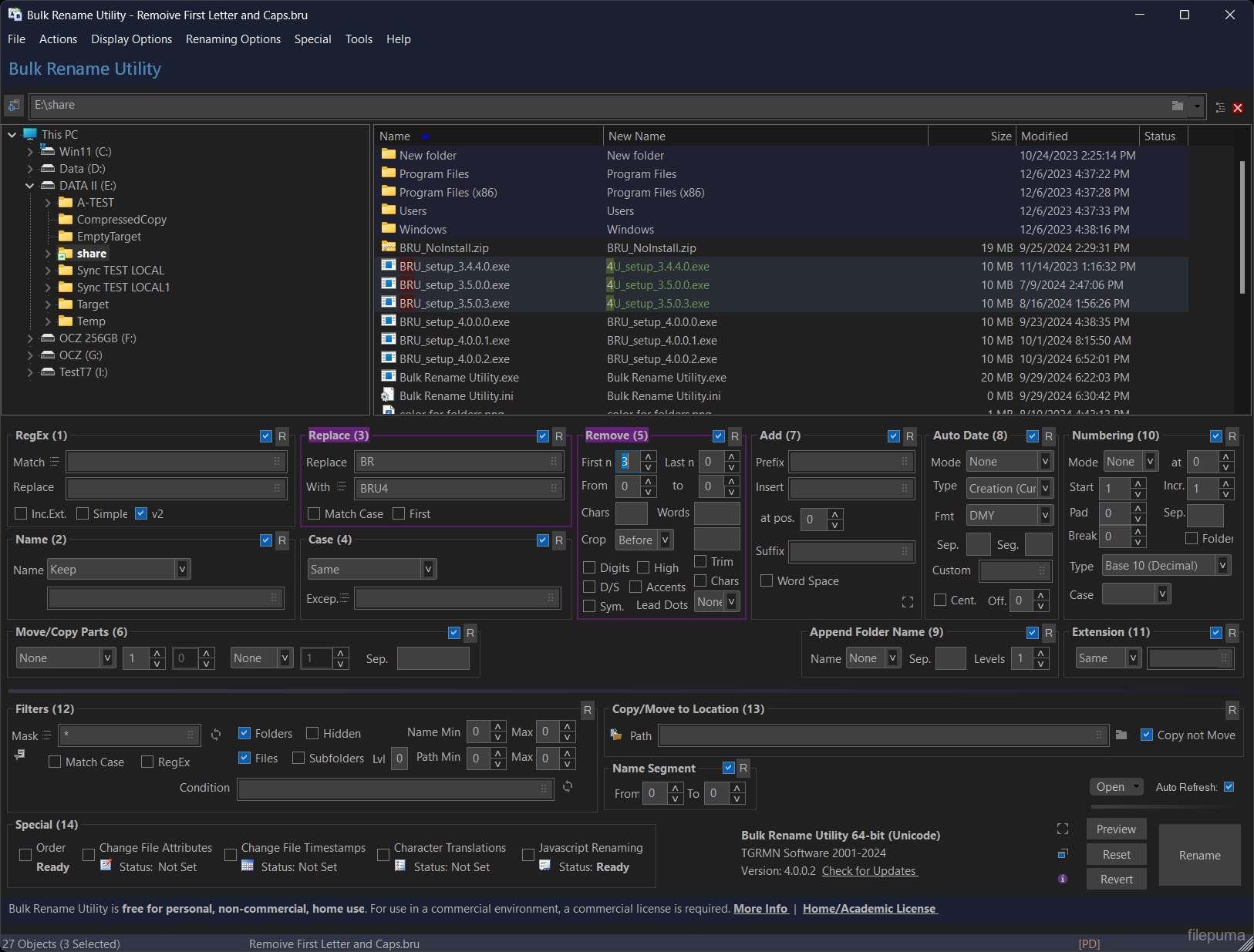
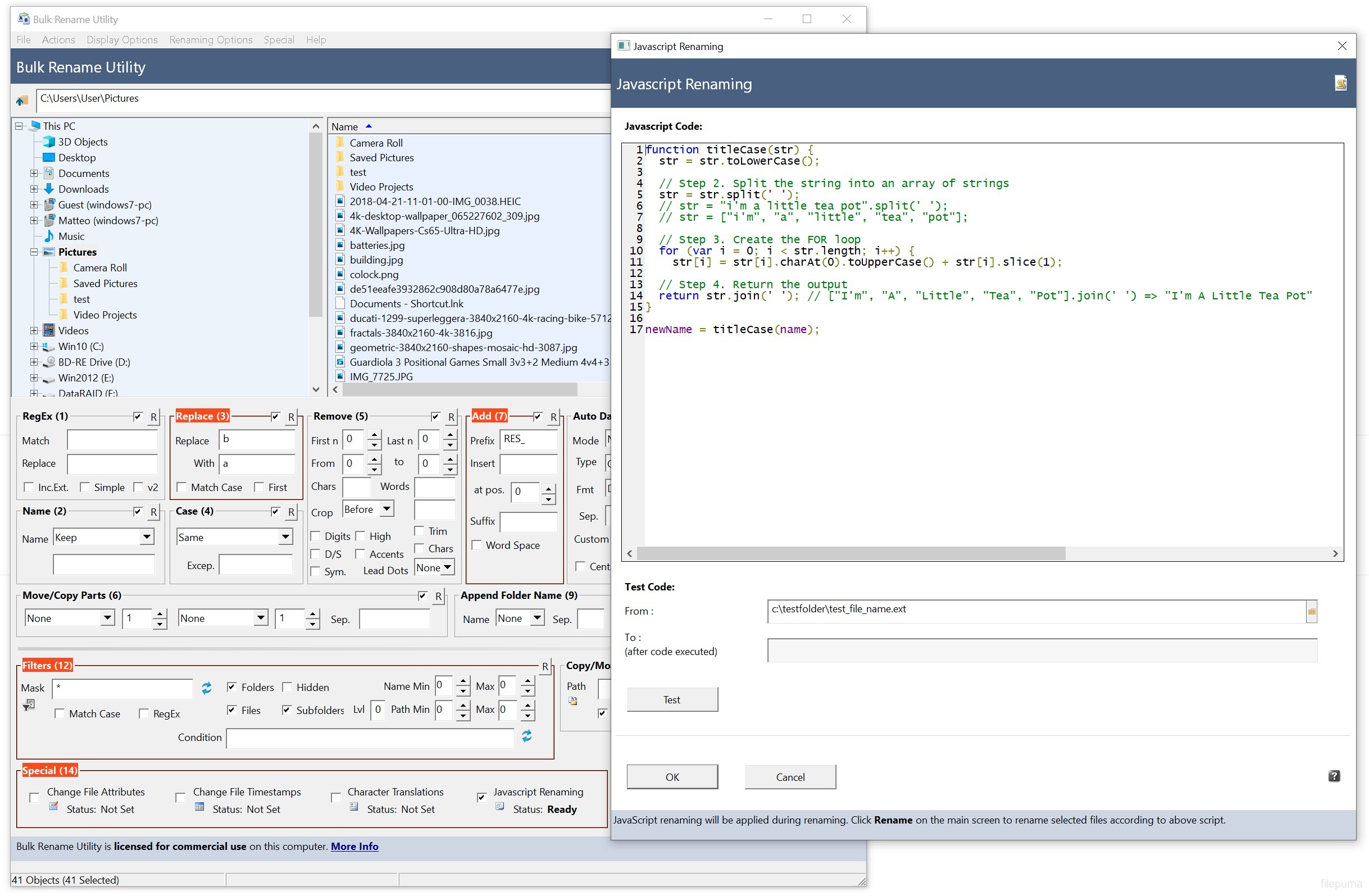
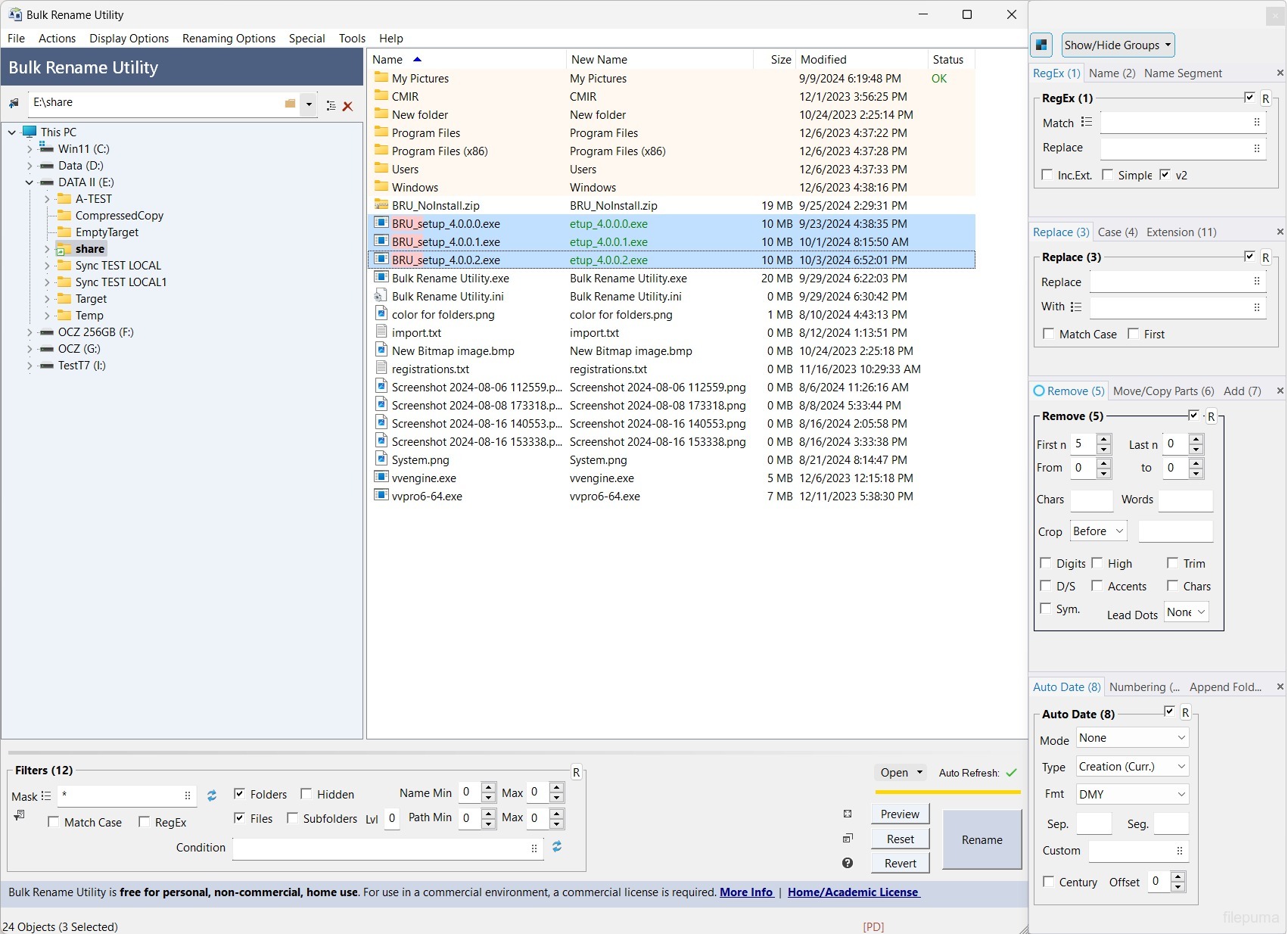
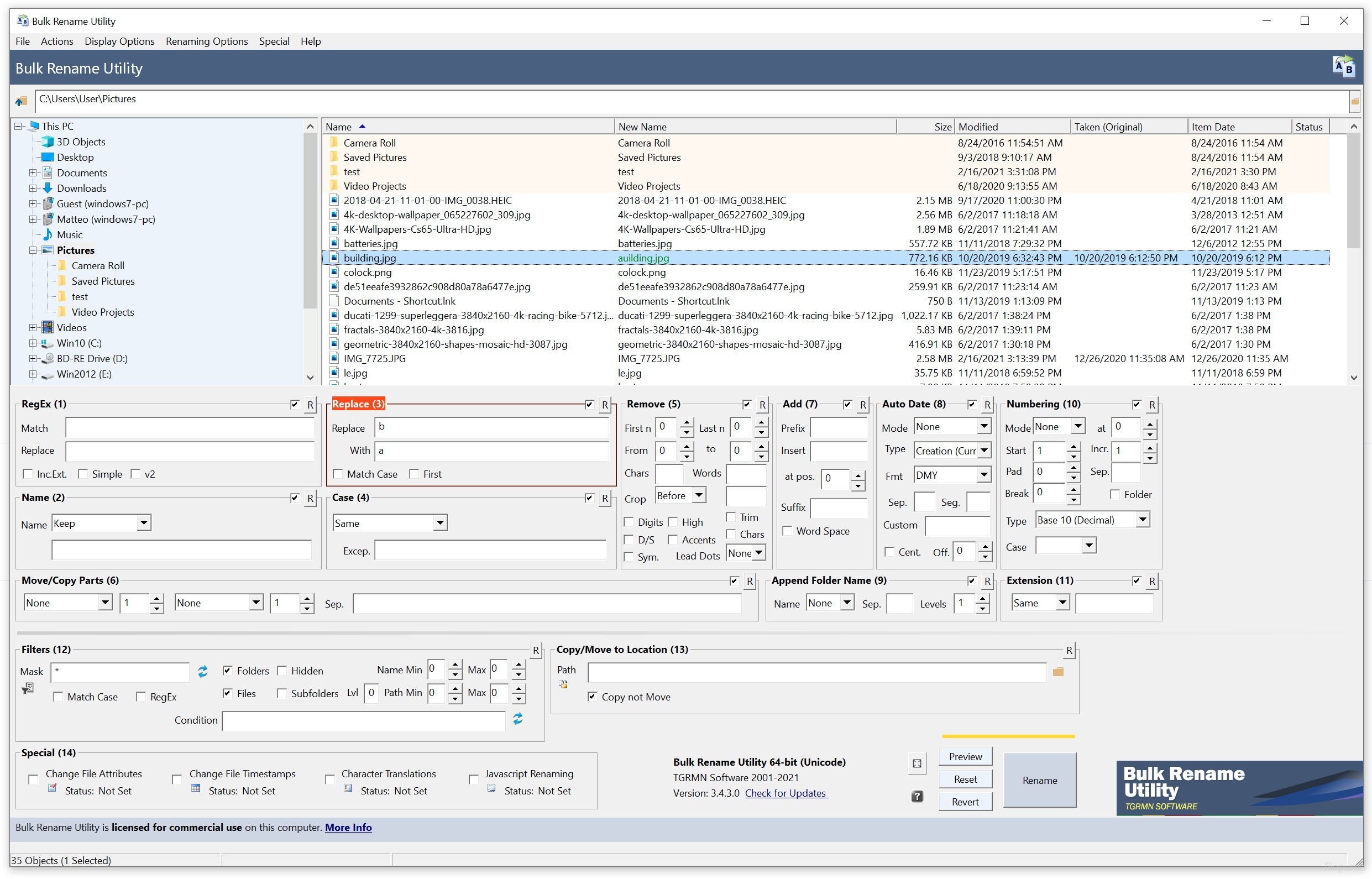
Bulk Rename Utility is a powerful file renaming tool designed to make renaming large sets of files easy and efficient. It offers a highly customizable interface, allowing users to perform a wide variety of renaming tasks. Whether you’re looking to rename thousands of photos, organize documents, or clean up file names, Bulk Rename Utility provides the flexibility to match your specific needs.
One of the key strengths of Bulk Rename Utility is its versatility. You can rename files by adding prefixes, suffixes, numbers, or even replacing text. It also allows for changing file extensions, adding timestamps, and renaming files based on metadata like EXIF data for images. This makes it particularly useful for photographers and digital archivists.
The software includes advanced features such as regular expressions, which enable users to define complex renaming patterns. Additionally, it supports batch processing, which helps save time by allowing users to rename hundreds or thousands of files in just a few clicks. This makes it suitable for both personal and professional use.
Despite its extensive features, Bulk Rename Utility remains lightweight and fast, running smoothly even on older systems. It’s free for personal use, with a premium version available for commercial use, making it accessible to a wide range of users.
Key Features:
- Batch File Renaming: Rename multiple files and folders in one go with various customizable options.
- Search and Replace: Replace specific text in file names with new text quickly.
- Add/Remove Text: Insert or delete characters in file names from any position.
- Auto Numbering: Add sequential numbers to file names automatically.
- Change File Timestamps: Modify creation, access, and modification dates of files.
- Case Conversion: Convert file names to uppercase, lowercase, title case, or other formats.
- Regular Expressions: Use powerful pattern matching for complex renaming tasks.
- Rename Based on Metadata: Rename files based on EXIF data, ID3 tags, or file properties.
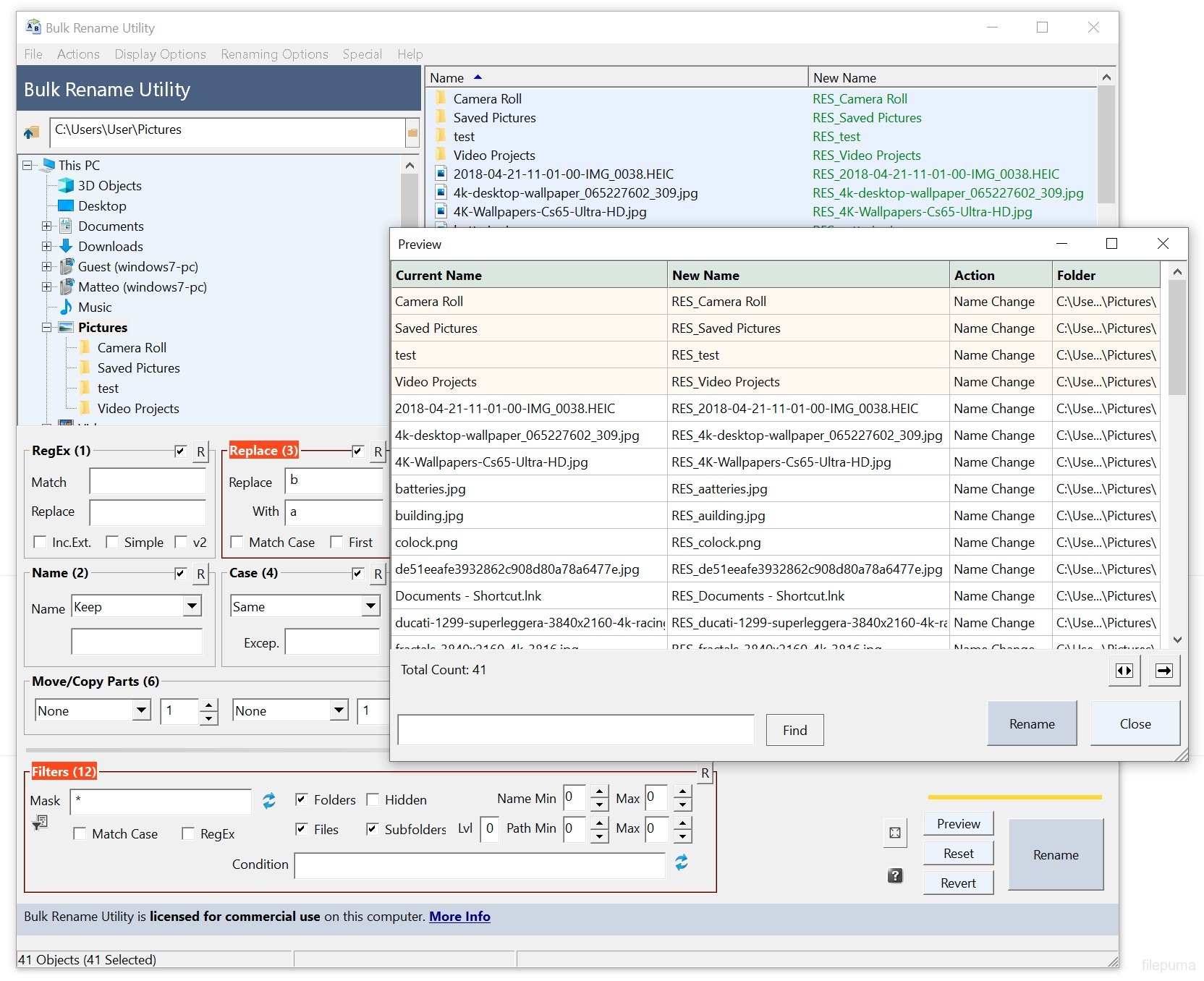
- Preview Changes: Preview new file names before applying changes to avoid errors.
- Command Line Support: Execute renaming tasks from the command line for automation.